
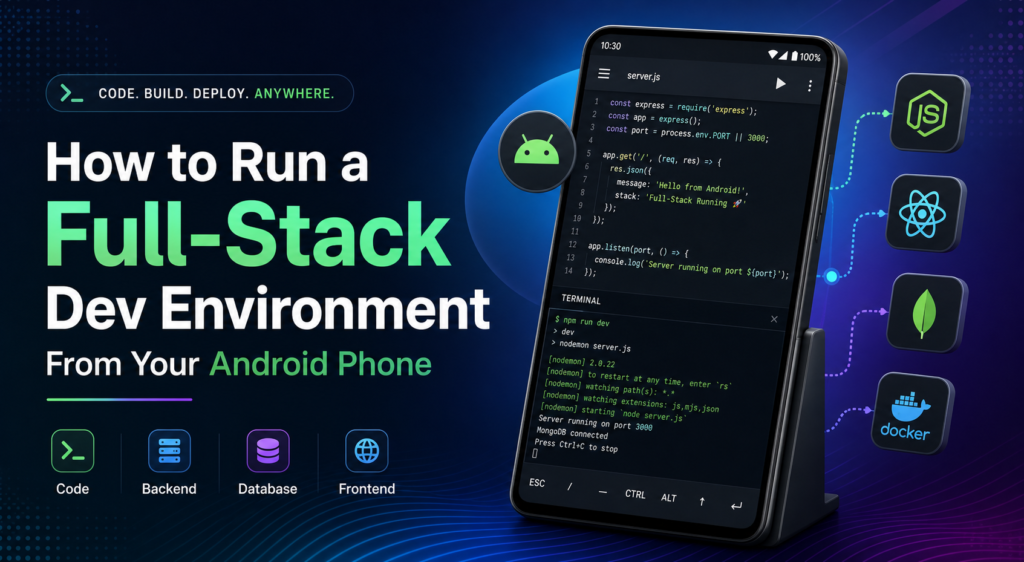
Move past drag and drop builders. Learn how to build, run, and ship real Next.js and Node.js applications entirely from a mobile browser ,no terminal installed, no high-end laptop required.
Table of Contents
- Introduction: The Barrier Nobody Talks About
- What Is a WebContainer, Really?
- Why This Is a Bigger Deal Than It Sounds
- The Two Main Routes: In-Browser Runtime vs. Cloud Machine
- Route One: StackBlitz — Instant, Zero-Install Development
- Getting Started on Android
- Building a Next.js Project Step by Step
- Working With a Node.js Backend in StackBlitz
- Saving, Forking, and Sharing Your Work
- Route Two: GitHub Codespaces — A Real Cloud Machine in Your Pocket
- Setting Up Your First Codespace
- Using the Real Terminal From a Touchscreen
- Running a Node.js Backend and Exposing Ports
- Understanding Free Tier Limits
- StackBlitz vs. Codespaces: Which One Should You Use?
- Other Tools Worth Knowing About
- Making a Small Screen Actually Workable
- A Practical First Project: Build a Mini API on Your Phone
- From Prototype to Production: Deploying What You Built
- Common Problems and How to Fix Them
- What This Means for African Developers and Freelancers
- A 7-Day Starter Plan
Introduction: The Barrier Nobody Talks About
Every “learn to code” guide starts the same way: install this, download that, set up your environment. It’s written for someone who already owns a laptop with 16GB of RAM and a stable power supply. For a huge number of people trying to break into tech , especially across Ghana, Nigeria, Kenya, and the rest of the continent that assumption is the actual barrier, not the syntax, not the logic, not the effort.
The tutorials are free. YouTube is free. The hardware isn’t.
What almost nobody tells beginners is that this hardware requirement quietly disappeared over the last few years. You do not need a laptop to write real code anymore. You do not need Node.js installed locally. You do not even need a terminal application on your device. You need a browser — the same one you already use for WhatsApp and Instagram and a data connection.
This is made possible by a technology shift called WebContainers, combined with the maturity of cloud development environments like GitHub Codespaces. Together, they represent what’s fair to call a small revolution in who gets to build software. This guide walks through exactly how it works, how to use it today from an Android phone, and how to go from “I opened an app” to “I have a working Next.js site with a live backend” all without touching a laptop.
What Is a WebContainer, Really?
A WebContainer is a full Node.js runtime that runs inside your browser tab, using a browser technology called WebAssembly (WASM). That means the file system, the package manager (npm), the dev server, and your actual application code are all executing on the device running the browser — except instead of needing a native Node.js installation, the browser itself becomes the runtime.
Here’s the important distinction: this is different from a typical online code editor, which usually just shows you a text box and sends your code to a server somewhere to actually run it. A WebContainer doesn’t need that round trip. When you type npm install in a WebContainer-powered editor, the package manager runs right there, in the tab, using a virtual file system built for the browser. When you start a dev server, it boots inside that same tab and serves a live preview instantly.
Practically, that means:
- No installation — nothing is downloaded to your phone’s operating system.
- No configuration — no environment variables to set up manually, no Node version managers.
- Fast iteration — because it’s not waiting on a distant server for every file save, editing feels closer to instant.
- Real npm packages — most of the standard Node.js ecosystem works, including popular frameworks.
The most well-known platform built around this technology is StackBlitz, which we’ll walk through in detail below.
Why This Is a Bigger Deal Than It Sounds
It’s easy to read “you can code on your phone” and think of it as a novelty , a way to make small edits on the go. That undersells what’s actually changed.
Consider what used to be required to learn full-stack development from scratch:
- A laptop capable of running a code editor, a browser, and a local dev server simultaneously.
- A stable local Node.js installation, often requiring troubleshooting version conflicts.
- Enough storage for
node_modulesfolders, which can balloon into hundreds of megabytes per project. - Reliable, unmetered electricity to keep a machine running for hours of practice.
Each of these is a real obstacle in parts of the world where devices are shared, data is metered, and power isn’t guaranteed. WebContainers and cloud IDEs don’t remove every obstacle , you still need a phone and some data but they collapse the first three almost entirely. The computer doing the heavy lifting is either your browser’s WASM runtime or a machine in the cloud you’re borrowing for free, not a device you had to buy specifically for this purpose.
This changes who the entry point is designed for. It’s no longer “someone with disposable income for a laptop.” It’s “someone with a mid-range Android phone” which is a vastly larger group.
The Two Main Routes: In-Browser Runtime vs. Cloud Machine
There are two fundamentally different approaches to mobile development environments, and understanding the difference will help you pick the right one for a given task.
Approach A In-Browser Runtime (StackBlitz): Your phone’s browser is the computer. Everything happens locally inside the WASM sandbox. There’s no waiting on a remote server to respond to your keystrokes, but you’re bound by whatever your phone’s browser can realistically handle.
Approach B Remote Cloud Machine (GitHub Codespaces): Your phone is a thin client , basically a window into a real virtual machine running somewhere in a data center. All the actual computing happens remotely; your phone just displays it and sends your taps and keystrokes. This gives you access to a genuinely powerful machine regardless of your phone’s own specs, but it depends more heavily on your internet connection quality.
Neither is strictly “better” — they solve slightly different problems, which is why the next two sections walk through both in detail.
Route One: StackBlitz – Instant, Zero Install Development
StackBlitz is the fastest possible way to start writing real code on Android. There’s no account required to begin experimenting, though you’ll want one to save your work permanently.
Getting Started on Android
- Open Chrome, Samsung Internet, or any modern Android browser.
- Navigate to StackBlitz’s website.
- Choose a starting template. Official first-party support includes Next.js, along with a wide range of other frameworks and plain Node.js starters.
- Within a few seconds, the environment loads: a file explorer on one side, a code editor in the center, and a live preview pane showing your running application.
There’s no “please wait while we provision your server” screen, because there is no separate server being provisioned , it’s all happening in that tab.
Building a Next.js Project Step by Step
Once your Next.js template has loaded:
- Explore the file structure. You’ll see the familiar
app/orpages/directory, apackage.json, and standard Next.js scaffolding. - Edit the homepage. Tap into
page.tsx(orpage.js), change some text, and save. The preview pane updates almost instantly , there’s no manual “run” step needed because the dev server is already active. - Add a new page. Create a new file inside the routing folder (for example
about/page.tsx), add a simple component, and navigate to it in the preview pane. This is a good way to internalize how Next.js routing works, since you’re seeing the folder structure directly map to URLs in real time. - Install a package. Open the terminal panel (StackBlitz includes an embedded terminal even in the browser version) and run
npm installfor any package you want to try — the install happens inside the WebContainer’s virtual file system. - Style it. Try adding Tailwind CSS or plain CSS modules and watch the preview update live.
Working With a Node.js Backend in StackBlitz
StackBlitz isn’t limited to front-end code. You can scaffold a plain Node.js/Express backend the same way:
- Start from a Node.js starter template (or add a
server.jsfile to an existing project). - Install Express via the embedded terminal:
npm install express. - Write a minimal server that listens on a port and responds to a request.
- StackBlitz automatically detects the running server and gives you a live, shareable preview URL , meaning your backend, running entirely from your phone, is reachable from any browser, anywhere, while the tab stays open.
This is worth sitting with for a second: a backend API, built and hosted temporarily straight from an Android phone, with a real public URL you can test from Postman or another device.
Saving, Forking, and Sharing Your Work
Create a free StackBlitz account (email or GitHub sign-in both work fine on mobile) to:
- Save projects permanently instead of losing them when the tab closes.
- Fork existing open-source projects to study or modify them.
- Connect directly to a GitHub repository, so your phone-built code syncs with the same repo you might also work on from a laptop later.
- Share a live link to your running project with a client, collaborator, or mentor — useful for freelance work where you want someone to see a working demo instantly.
Route Two: GitHub Codespaces – A Real Cloud Machine in Your Pocket
When a project outgrows what makes sense in a browser-only runtime — heavier dependencies, a database, more demanding build tools — GitHub Codespaces is the natural next step.
Setting Up Your First Codespace
- Open your repository on github.com in your mobile browser, or use the official GitHub mobile app.
- Tap the green Code button.
- Select the Codespaces tab, then Create codespace on main (or whichever branch you’re working from).
- GitHub provisions a genuine cloud-based Linux container behind the scenes — this typically takes anywhere from a few seconds to a couple of minutes.
- You land inside a full browser-based version of VS Code, connected to that remote machine.
If you don’t have a repository yet, create a blank one from the GitHub app first, then launch a Codespace from it — you can build the whole project from there.
Using the Real Terminal From a Touchscreen
This is the biggest practical difference from StackBlitz: Codespaces gives you an actual Linux terminal, not just a simplified command panel. That means real commands like:
npm install
npm run dev
node server.js
git add .
git commit -m "first commit from my phone"
git push
all work exactly as they would on a laptop, because you’re genuinely operating a remote Linux machine. Typing these on a phone keyboard is slower than on a physical keyboard, but every command you’d use professionally is available , this is not a simplified “learning mode,” it’s the real thing.
Tip: enable your phone’s keyboard suggestions and consider a Bluetooth keyboard for extended terminal sessions , it turns a merely possible workflow into a genuinely comfortable one.
Running a Node.js Backend and Exposing Ports
When you run a Node.js server inside a Codespace (for example npm run dev on a Next.js app or node server.js on an Express app), Codespaces automatically detects the open port and offers to forward it. Tap the notification, and you get a live URL you can open in a new browser tab , even from a completely different device to see your backend running.
This means you can build an entire API, connect it to a database, and test it against real HTTP requests, all from your phone, with the actual computing work happening on GitHub’s infrastructure rather than draining your battery.
Understanding Free Tier Limits
GitHub Codespaces includes a free monthly allotment of compute and storage hours for personal accounts, which resets each billing cycle. It’s generous enough for regular practice and small projects, but it is not unlimited — heavy, all-day usage will eventually hit the free ceiling. A few practical habits help:
- Stop your Codespace when you’re done, rather than leaving it running idle — this stops the compute clock.
- Delete Codespaces you no longer need to free up storage allowance.
- Check your usage periodically in GitHub’s billing settings so you’re not surprised.
Used deliberately, the free tier is more than enough to learn on and to build real, deployable projects.
StackBlitz vs. Codespaces: Which One Should You Use?
| StackBlitz | GitHub Codespaces | |
|---|---|---|
| Setup time | Instant, no sign-in required to start | A minute or two to provision |
| Where code runs | Inside your browser tab (WebAssembly) | A real remote Linux virtual machine |
| Terminal | Simplified, browser-based | Full real Linux terminal |
| Best for | Prototyping, learning, front-end heavy work, quick demos | Backend-heavy projects, databases, real deployment pipelines |
| Data connection sensitivity | Lower – most computation is local to the tab | Higher – you are streaming a remote session |
| Free usage limits | Generally very generous for personal use | Capped monthly compute/storage hours |
| GitHub integration | Optional | Native |
A practical rule of thumb: start ideas in StackBlitz, graduate serious projects to Codespaces once you need the real terminal, a database, or more computing power than a browser tab can comfortably handle.
Other Tools Worth Knowing About
While StackBlitz and Codespaces are the two most beginner-friendly and widely used options, a few others are worth knowing about as you go further:
- Gitpod — another cloud development environment similar in spirit to Codespaces, with its own free tier and strong GitHub/GitLab integration.
- Replit — a long-running browser-based coding platform that supports many languages, with a strong community and built-in hosting for small projects.
- Termux — technically different from the above (it’s a Linux terminal emulator that runs locally on Android itself, not in the browser), but worth knowing about for anyone who wants an on-device terminal for lightweight scripting without relying on the cloud at all.
Each of these deserves its own deep dive, but knowing they exist means you’re not boxed into a single workflow.
Making a Small Screen Actually Workable
The genuine limitation here isn’t compute — it’s a six-inch display. A few adjustments make a real difference:
- Rotate to landscape. Both StackBlitz’s editor and Codespaces’ embedded VS Code become noticeably more usable sideways, giving the file tree and editor pane more breathing room.
- Use a Bluetooth keyboard when you can. It’s not required, but for any session longer than quick edits, it changes the experience substantially.
- Learn the mobile command palette. Since
Ctrl+Shift+Pisn’t available on a touch keyboard, both platforms expose a menu driven equivalent , usually a hamburger icon or a dedicated command palette button. Learn where it lives; it saves constant hunting through menus. - Use the file search instead of scrolling. Both editors have a search by filename shortcut, usually accessible from the same command palette.
- Split your workflow. Use voice to text for planning and comments, and switch to typing for precise syntax , mixing the two speeds things up considerably.
- Bookmark your active projects. Both platforms give you direct URLs back into a running project, so you can pick up exactly where you left off without re-navigating menus each time.
None of this makes a phone equivalent to a laptop for long, sustained development sessions. But it removes the access barrier the false idea that nothing can start until better hardware is available.
A Practical First Project: Build a Mini API on Your Phone
To make this concrete, here’s a realistic first project you can complete entirely on Android, start to finish, using StackBlitz.
- Start a Node.js template in StackBlitz.
- Install Express:
npm install express. - Create a simple route that returns a JSON response — for example, a small “quotes” API that returns a random motivational quote from a hardcoded array.
- Add a second route that accepts a query parameter and filters the results — this introduces basic request handling.
- Test it using the live preview URL StackBlitz generates, either by visiting it directly in another browser tab or using a mobile API-testing app.
- Push it to GitHub using StackBlitz’s GitHub connection feature.
- Open the same repository in Codespaces to confirm it runs identically in a full cloud environment — a useful exercise in seeing how the two platforms relate to the same underlying code.
By the end, you’ll have shipped a small, working, publicly reachable backend API — without a laptop, without a local Node.js install, and without ever leaving your phone’s browser.
From Prototype to Production: Deploying What You Built
Once a project is working, the natural next step is a permanent deployment (rather than a temporary live-preview URL that depends on your tab or Codespace staying open). From your phone, you can typically:
- Push your finished code to a GitHub repository (both StackBlitz and Codespaces support this natively).
- Connect that repository to a hosting platform built for Next.js and Node.js apps — most support GitHub sign-in and automatic deployment on every push, all configurable from a mobile browser.
- Set any required environment variables directly in the hosting platform’s dashboard, again from your phone.
- Get a permanent live URL, with automatic redeploys every time you push new commits from either StackBlitz or Codespaces.
This closes the loop: idea, code, backend, and live deployment, entirely from a phone, entirely without owning dedicated developer hardware.
Common Problems and How to Fix Them
“My preview isn’t updating.” Give it a few seconds — WebContainer-based previews sometimes lag slightly behind a save. If it persists, check the terminal panel for an error the dev server may have thrown.
“The Codespace feels slow.” This is almost always a connection issue rather than a compute issue, since the heavy lifting happens remotely. Switch to Wi-Fi if you’re on mobile data, or move to a stronger signal area.
“I ran out of free Codespaces hours.” Stop unused Codespaces promptly, delete old ones you’re not returning to, and consider doing early prototyping in StackBlitz (which has more generous limits for personal use) before graduating a project to Codespaces.
“Typing code on a touchscreen is exhausting.” This is real, and a Bluetooth keyboard is the single highest-leverage purchase for this workflow if you can access one even an inexpensive one changes the experience substantially. Until then, lean on voice to text for comments/planning and keep actual syntax edits short and deliberate.
“I can’t find a specific menu option.” Both platforms hide desktop only shortcuts behind a mobile-friendly menu or command palette look for a hamburger icon or three dot menu near the editor toolbar.
What This Means for African Developers and Freelancers
For readers building an income around digital skills – freelancing, small SaaS ideas, client web work — this shift matters in very practical terms:
- You can take on real Node.js/Next.js freelance gigs without owning a laptop, using a phone and, where possible, a borrowed or shared machine for longer sessions.
- You can build a portfolio project entirely on mobile data, then show a live, working link to a potential client or employer — a much stronger signal than a static screenshot.
- You can pick up exactly where you left off on a shared or borrowed laptop later, because your code already lives on GitHub, synced automatically from either platform.
- Skill-building is no longer gated by hardware ownership. The sentence “I can’t learn to code because I don’t have a laptop” is no longer accurate – it might still be harder without one, but it is not a hard stop anymore.
This is worth internalizing fully: the barrier that used to separate “people with access to opportunity” from everyone else has moved. It’s smaller now than it’s ever been.
A 7-Day Starter Plan
For anyone who wants a concrete way to put this into practice rather than just reading about it:
- Day 1: Open StackBlitz on your phone, spin up a Next.js template, and edit the homepage. Get comfortable with the file explorer and live preview.
- Day 2: Add a second page and a simple navigation link between the two. Practice Next.js routing hands-on.
- Day 3: Build the mini quotes API described above using Express inside a StackBlitz Node.js template.
- Day 4: Create a free GitHub account (if you don’t already have one) and push your project from StackBlitz to a new repository.
- Day 5: Open that same repository in GitHub Codespaces and get comfortable running
npm installandnpm run devfrom a real terminal. - Day 6: Open your finished mini API project in GitHub Codespaces and confirm it runs identically outside StackBlitz. Push a small improvement — a new route, a bug fix, better error handling.
- Day 7: Connect your repository to a hosting platform, get a permanent live URL, and share it. Post the link in one relevant developer or freelance Facebook group. Tell two people in your network what you can now build.
By the end of the week, you will have gone from an empty browser tab to a deployed, shareable, working application , using nothing but an Android phone.
You will not get everything right immediately. Your first project will not be polished. Your first Codespace session may feel slow and confusing. That is normal and expected. The developers now building real Next.js and Node.js projects from Android phones were also beginners fumbling through their first WebContainer session a few months ago.
Start. Build. Ship. Repeat.
Every workflow in this guide is based on hands-on testing of StackBlitz and GitHub Codespaces on real Android devices, plus documentation from both platforms.
Related Articles on TheDiaHub.com:
- How to Build a Knowledge-Based Side Hustle in Africa Using Notion and Gumroad (Complete 2026 Guide)
- How to Rank in Google and Show Up in AI Search (Complete Guide for African Creators)
- 27 Best Side Hustle Ideas for Beginners in Africa 2026 (No Experience Needed)
- Chatbase Review 2026: Build and Train Your Own AI Agent Without Writing a Single Line of Code

Latif Saeed Okwan is a digital entrepreneur from Accra, Ghana helping Africans build real online income through affiliate marketing, AI tools, and digital business. Every method on TheDiaHub.com has been personally researched with the African reality in mind — no hype.