
This post contains affiliate links. If you sign up through my links, I may earn a commission at no extra cost to you. I only recommend tools I genuinely use and believe in.
Let me tell you something that stopped me in my tracks when I first discovered it.
You can be in the middle of sending an email, drafting a caption, writing a message to a client, or prompting an AI tool and instead of typing a single word, you can just speak. Naturally, the way you talk. And what comes out on the other side is clean, polished, perfectly formatted text. In every app. On every device. Without switching tools.
That’s Wispr Flow. And it is one of the most genuinely useful productivity upgrades I have ever added to my workflow.
Voice to text has been around for years. Most of us have tried it at some point and given up. It was clunky. It got the words wrong. It didn’t understand context. It left you spending more time correcting than if you’d just typed. I know because I gave up on it too more than once.
What Wispr Flow does is different. And this guide is going to walk you through exactly what it is, how it works, who it’s for, and what it actually feels like to use it in daily life. I’ll also cover the honest limitations, because no tool is perfect.
Ready? Let’s get into it.
What Is Wispr Flow and How Does It Actually Work?
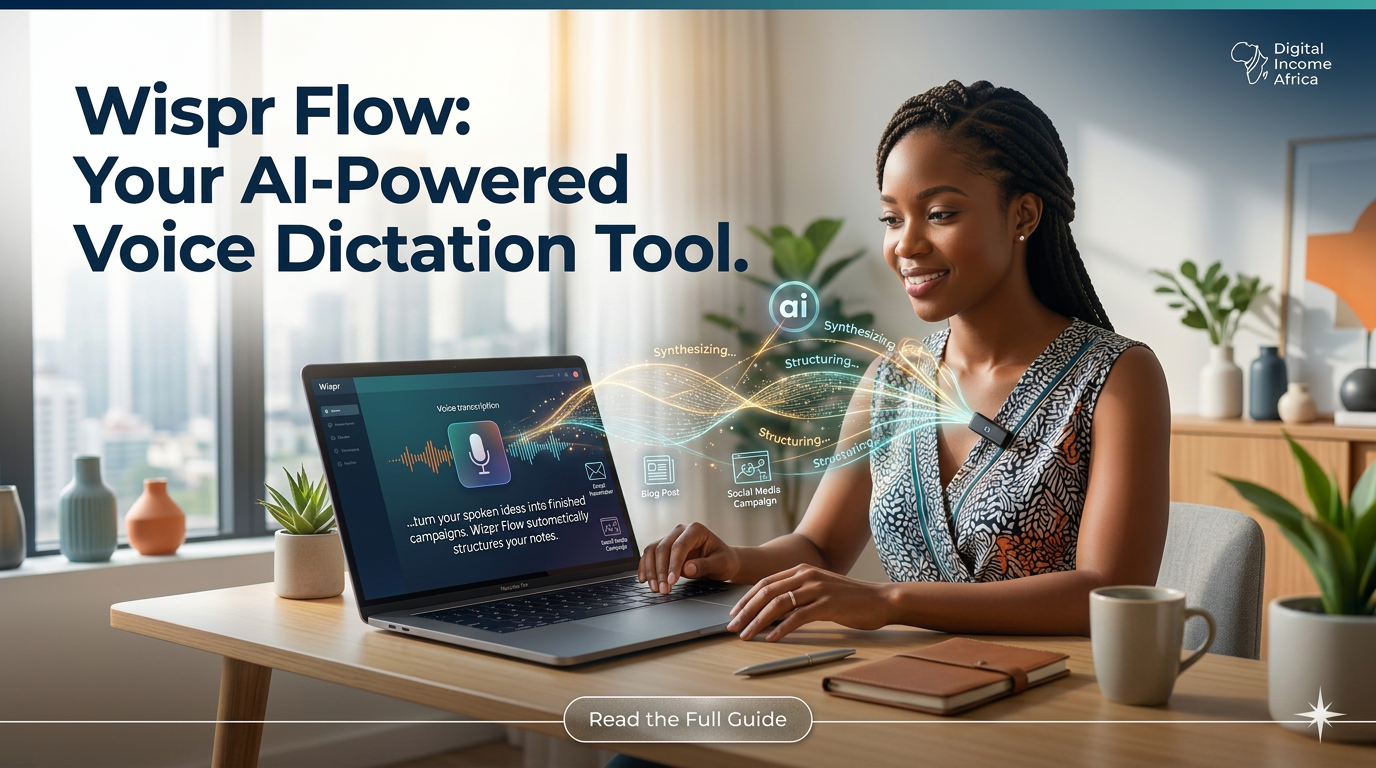
Wispr Flow is an AI-powered voice dictation tool that runs on Mac, Windows, iPhone, and Android. But calling it a “dictation tool” undersells it. What it actually does is convert your natural, rambling speech into polished, properly structured text automatically, in real time, in whatever app you’re already using.
Here’s what that means in practice:
You open your email client, your Slack, your Notion doc, your Twitter/X compose box, your AI chat interface whatever you’re working in. You hold a keyboard shortcut or tap a button. You speak naturally. You don’t have to be eloquent. You can say “um” and “like” and trail off mid-sentence. Flow takes all of that raw speech and returns clean, edited text that sounds like your best writing not a transcript of your worst verbal habits.
The most important thing to understand is this: Wispr Flow is not a transcription service. It’s an AI layer on top of transcription. The difference is everything. Transcription gives you what you said, word for word, with every filler and stumble. Flow gives you what you meant cleaned up, properly punctuated, context-aware.
Why Voice to Text Is Worth Your Serious Attention Right Now
People have been skeptical of voice input for a long time, and honestly, that skepticism was earned. The tools weren’t good enough. They are now.
The average person speaks at around 120–150 words per minute. The average person types at 40–50 words per minute. Even good typists max out around 80–90 words per minute under ideal conditions. Speech is, at minimum, three times faster than typing and that gap widens enormously when you factor in pausing to think about what to type, editing mistakes, reaching for punctuation, and all the other friction that slows down written communication.
The other thing that makes this a great time to start? The AI underneath modern voice tools has matured dramatically. Flow uses models trained to understand context, not just phonetics. It knows that “their” and “there” are different. It knows when you’re writing a formal email versus a casual DM. It adjusts its output accordingly.
Once you train yourself to speak your thoughts instead of typing them, the productivity shift is jarring in the best way.
The Features That Actually Matter
One of the biggest mistakes people make with new tools is diving in without understanding what they’re really built to do. Let me break down Wispr Flow’s key capabilities and what each one is actually for.
AI Auto-Edits The Core Magic
This is the heart of Flow. You speak naturally, and the AI edits on the fly. It removes filler words (“um,” “uh,” “like,” “you know”). It fixes grammar. It handles punctuation. It restructures rambling sentences into readable prose. You get to think out loud and receive polished text. This works in real time and works everywhere on your screen it’s not limited to a special Flow text box. It works inside Gmail, Slack, ChatGPT, Cursor, VS Code, Notion, WhatsApp, iMessage, LinkedIn, X, Outlook, and hundreds of other apps.
Personal Dictionary
Flow learns your specific vocabulary. Names of colleagues, technical jargon, niche terms, brand names, locations anything that normal autocorrect butchers. You add words to your personal dictionary once, and Flow remembers them permanently and syncs them across all your devices. This is particularly valuable for professionals with specialized vocabularies: developers, lawyers, medical workers, marketers.
Snippet Library
This is one of my favourite features. You create voice shortcuts for phrases or blocks of text you use repeatedly. Say your scheduling link cue “send calendar” or whatever you set — and Flow pastes in your full Calendly URL and any surrounding text you’ve saved. Say your intro phrase and get your full elevator pitch. Say your FAQ shortcut and get the full formatted answer. The time savings add up fast for anyone who sends repetitive content.
Tone Adjustment by App
Flow reads what app you’re in and adjusts its output accordingly. A voice note in Slack comes out more casual and punchy. A voice draft in Gmail comes out more formal and structured. A code comment in VS Code comes out precise and terse. You’re not manually switching modes — it infers the right register from context.
100+ Languages
Flow automatically detects and transcribes in whatever language you’re speaking. It handles switching between languages mid-session. For multilingual users, this is a feature that most competing tools still can’t match properly.
Cross-Device Sync
Your personal dictionary, snippets, settings, and preferences sync across every device. Start dictating on your Mac at your desk, continue on your iPhone while walking to a meeting. The experience is seamless.
Who Is Wispr Flow Actually For?
Wispr Flow is used by a remarkably wide range of people. Here are the groups where it makes the biggest difference.
Leaders and Founders
Executives and business owners are often the people with the highest volume of written communication and the least time. Email threads, Slack messages, project feedback, board docs, investor updates, team memos the volume of text that has to move through a senior person in a company is enormous. Flow lets leaders clear their communication backlog at speaking speed rather than typing speed.
Developers and Technical Professionals
Developers use Flow to dictate code comments, commit messages, documentation, pull request descriptions, bug reports, and prompts to AI coding tools like Cursor. The personal dictionary makes sure technical terms are captured correctly. The ability to dictate natural language into an AI prompt and get a clean, specific instruction is particularly valuable for vibe coding workflows.
Content Creators
Creators live in the ideas economy. Ideas come fast and need to be captured instantly — in the middle of a walk, while something occurs to you mid-conversation, late at night before you forget. Flow works on iPhone and Android, so you can capture ideas at the exact moment they strike and have them come out as properly written drafts rather than garbled voice notes. Then, when you’re at your desk, you can write full captions, scripts, emails, and posts at speaking speed.
Students
Students write constantly essays, notes, discussion board posts, emails to professors, cover letters, applications. Flow removes the friction between thinking and putting words on the page. This is especially valuable for students with dyslexia, ADHD, or other conditions that make typing feel like an obstacle rather than a tool.
Customer Support Professionals
Support teams answer the same categories of questions hundreds of times per day. Flow’s snippet library handles the repetitive blocks while voice dictation handles the personalized parts. The result is dramatically faster ticket resolution without sacrificing the human quality of responses.
Anyone with Accessibility Needs
This is one of the use cases I feel strongest about. Keyboards are not the default interface of human communication speech is. For anyone for whom typing is painful, slow, or impossible whether due to injury, disability, or condition Flow restores the ability to communicate at speed. There are Flow users who have described it as transformative in a way that goes well beyond productivity.
The Technical Reality: What Works and What to Know
I want to be honest about the way Flow actually functions, because understanding the mechanics helps you use it better.
Flow requires an internet connection to process voice. It’s not fully offline. On slow connections, there can be a brief lag between speaking and seeing the output. This is worth knowing upfront it’s not a dealbreaker for most workflows, but it matters if you frequently work in low-connectivity situations.
The AI edits are impressive but not infallible. Occasionally, a word is misheard or a sentence is restructured in a way you didn’t intend. The more you use Flow, the better it gets at your voice and vocabulary but it’s not perfect from day one. Plan to spend a few sessions getting comfortable with how it handles your speech patterns before judging it harshly.
Flow is currently available on Mac, Windows, iPhone, and Android. The desktop experience is the most mature it integrates deeply with Mac and Windows app ecosystems. The mobile experience is strong and improving.
Pricing starts with a free plan for basic use, with a Pro plan that unlocks the full feature set including unlimited AI edits, the snippet library, and cross-device sync. The 14-day free trial of Pro requires no credit card, so you can test the full experience before committing to anything.
The Honest Hurdles (And How to Get Past Them)
Hurdle #1: The Learning Curve of Speaking to Type
Most of us have spent decades training ourselves to think-then-type. The habit of generating written text through a keyboard is deeply ingrained. Switching to voice feels awkward at first not because the tool doesn’t work, but because speaking for the purpose of generating text is a different cognitive mode than speaking in conversation.
The solution is deliberate practice. Start with low-stakes content: casual Slack messages, quick replies, personal notes. Don’t start by trying to dictate a formal business proposal. Let yourself find the rhythm of speaking-to-write over a week or two. Most people report that it clicks suddenly and then they can’t imagine going back.
Hurdle #2: Environment
Voice input requires that you can speak out loud. In an open-plan office, a coffee shop, or a shared bedroom, this is a real consideration. Some users solve this with a quiet headset microphone that keeps their voice close to the mic and minimizes ambient sound. Others use Flow primarily for solo work sessions and switch to typing in environments where speaking feels awkward. Know your workflow and environment before assuming this fits every context.
Hurdle #3: Accuracy on Technical Terms
Out of the box, Flow handles standard vocabulary extremely well. For highly specialized terminology niche medical terms, code-specific syntax, unusual proper nouns the personal dictionary is essential. Invest ten minutes adding your most-used technical words when you first set up Flow, and accuracy on those terms jumps dramatically.
How to Get the Most Out of Wispr Flow
These are the habits that separate people who love Flow from people who try it once and don’t stick with it.
Start with your email inbox. Replying to emails is the single best starting point for Flow because the emails themselves give you context, you can speak your reply naturally, and there’s no performance pressure. Do this for three days and you’ll feel the speed difference viscerally.
Build your snippet library early. Think about what you write repeatedly your scheduling link, your standard intro, your FAQ answers, your canned responses, your most-used prompts. Turn each of them into a snippet. This one-time setup creates ongoing leverage every single week.
Use it for AI prompts. If you use ChatGPT, Claude, Perplexity, or any AI tool, try dictating your prompts instead of typing them. Speaking prompts allows you to be more expansive and natural, which often produces better results from the AI. The ability to speak a detailed, context-rich prompt in 30 seconds versus spending three minutes carefully typing it is a real productivity multiplier.
Let it handle your morning messages. Instead of typing your first batch of Slack messages and emails in the morning, speak them all. Set a timer and see how many you can clear in 15 minutes using voice. The speed difference will make the argument for you better than I ever could.
Pricing: What You’re Actually Paying For
Wispr Flow has a free tier that lets you test the basic voice-to-text without committing. The Pro plan unlocks AI auto-edits, the full snippet library, cross-device sync, and the personal dictionary at its full power. The 14-day free trial of Pro requires no card.
For professionals whose time has any measurable value and everyone’s does the calculus is simple. If Flow saves you 30 minutes per workday, that’s 130+ hours per year. At almost any reasonable hourly valuation, the subscription pays for itself many times over.
If you type for a living, you should try this. The link to sign up and start your free trial is here: sign up

I am Latif Saeed Okwan a digital entrepreneur from Accra, Ghana helping Africans build real online income through affiliate marketing, AI tools, and digital business. Every method on TheDiaHub.com has been personally researched with the African reality in mind -no hype.